Digital Report Session
-Report template
-Digital dashboard
-Excel
Attention to detail is extremely important, triple check your information is correct – typos, take out unnecessary wording, picking up if something has underperformed.
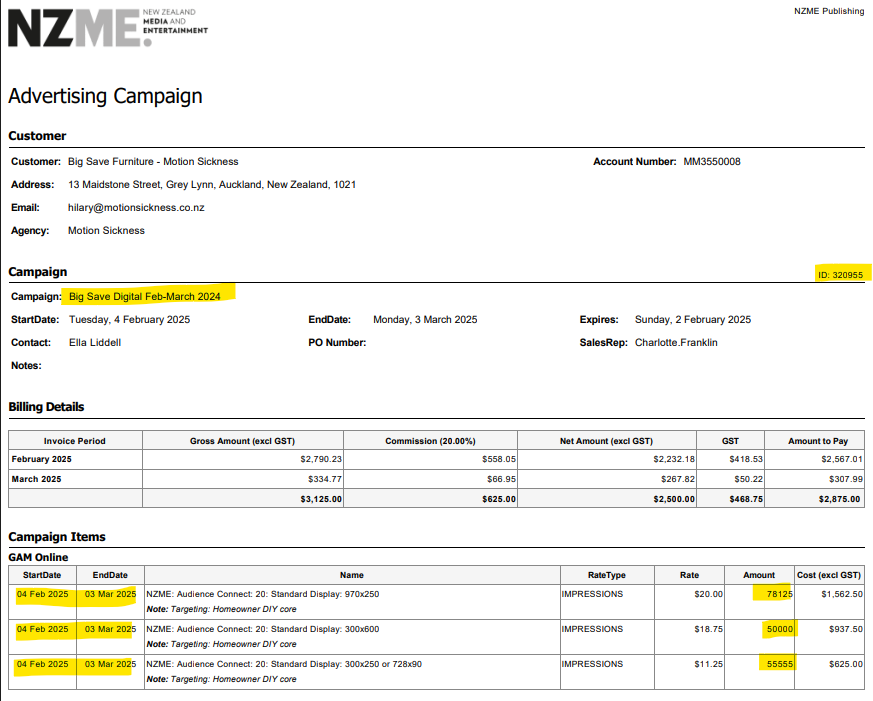
Does the IO match what you have put in the report? Is there targeting? Have you included the targeting in the report?
Note campaigns can be digital only or across all platforms
Step 1; Get IO and fill in first two slides on template
You will be sent an IO = Insertion Order from a coord
Take note of:
Campaign name
Start and end dates
Amount = Impressions booked
Targeting – this needs to be added to the
report as well
Campaign Overview
From the Digital dashboard export the campaign overview related to your IO
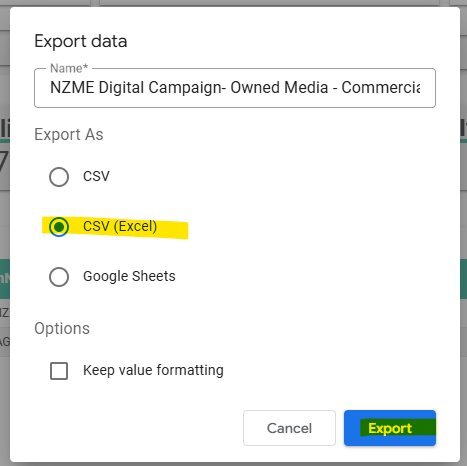
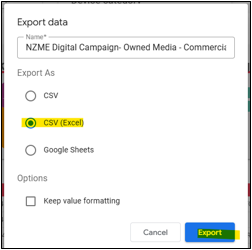
Select Advertiser and Order, once the IO matches what is showing, export to CSV (excel)
Test pages may or may not show up, export with them if they are there
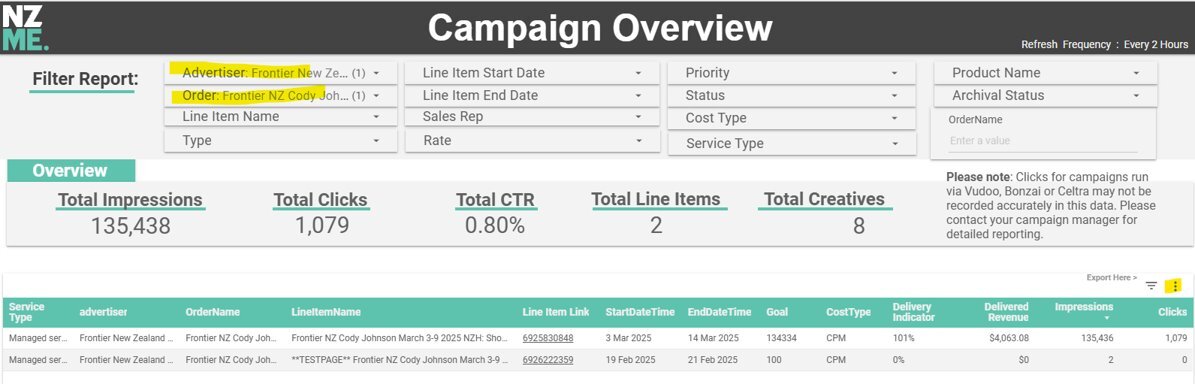
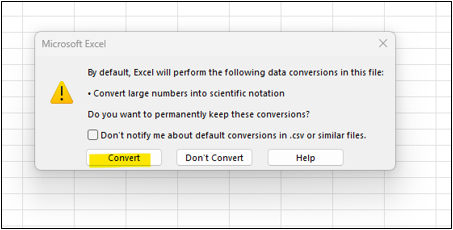
Once downloaded, edit your spreadsheet, remove these columns; Service Type, advertiser, OrderName, LineItem Link, CostType, Delivery Indicator, Delivered Revenue. Also remove rows if they say TEST in name
Keep:
LineItem name
Start date
End date
Goal – you must edit so it shows what is on the IO, if it is a daily buy or click campaign, edit to reflect this eg Change heading to Clicks or NA if no impression goal
Impressions
Clicks
Then add CTR (click through rate) = Clicks / Impressions, enter, percentage button, two decimal points
Next
FILTER BY START DATE, so it shows oldest date at top and most recent at the bottom
Take out all extra wording under LineItem name

Copy and paste numbers into PowerPoint report template, use product slides, edit font size, colour, if there are multiple creatives use the slide with more space;
Add in creative name and preview link under the creative
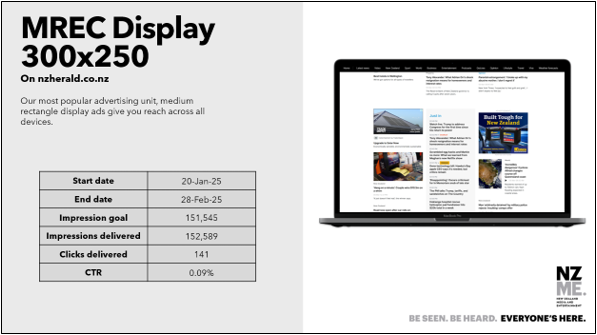
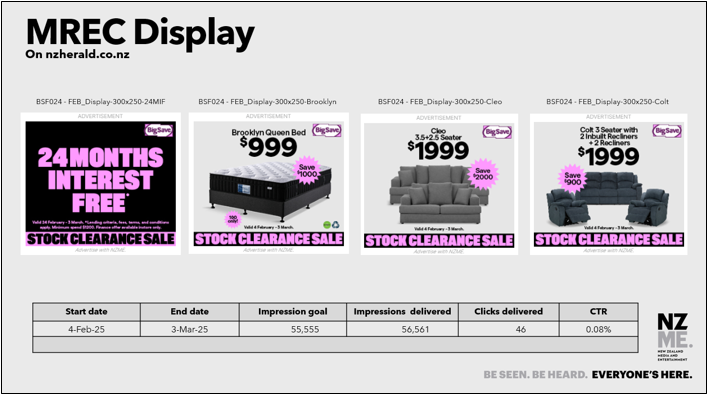
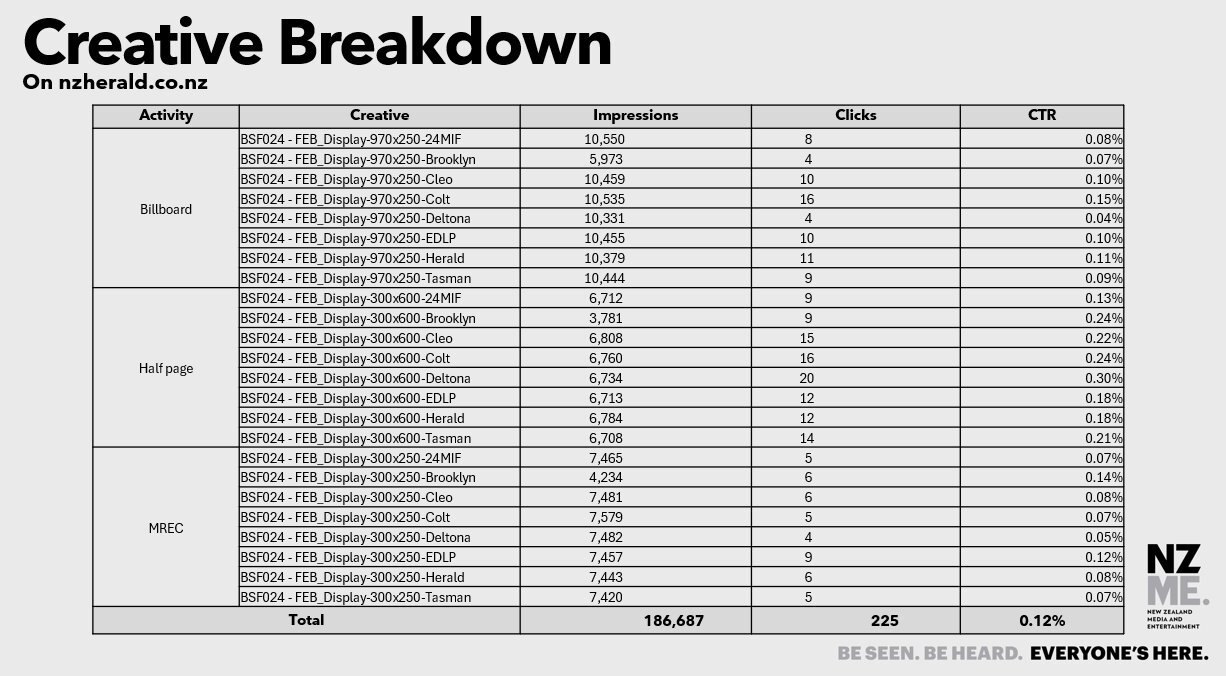
Creative Breakdown
Select start and end date – you must select a date no later than today’s date or nothing will show up.
Select Order (IO campaign name)
Export to Excel
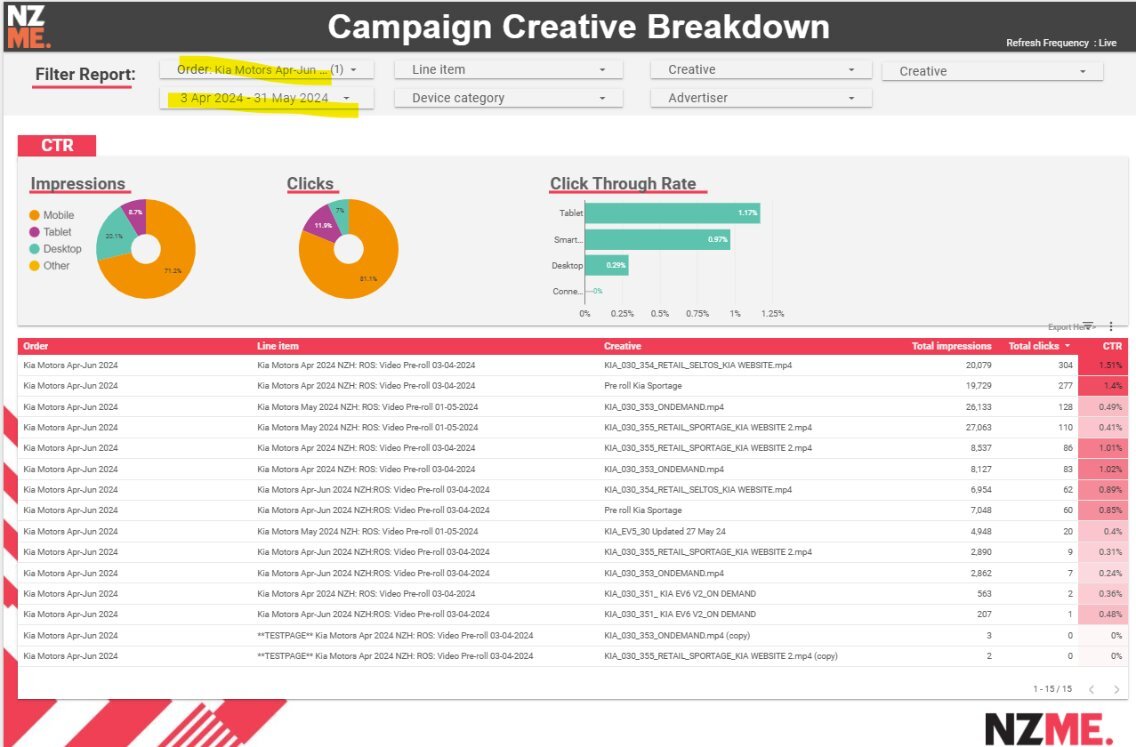
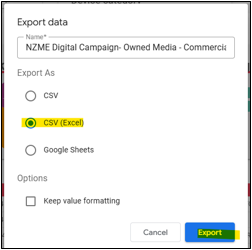
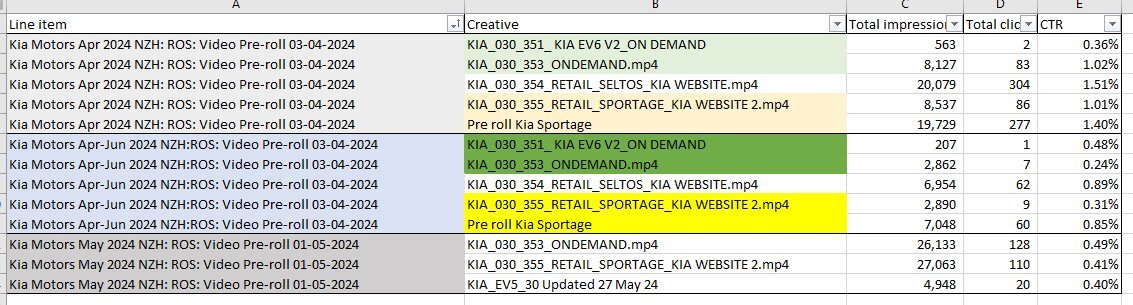
Download spreadsheet and filter by LineItem then creative
Combine the rows that are doubled up
Merge the LineItem rows that are repeats…
Copy and paste into PowerPoint
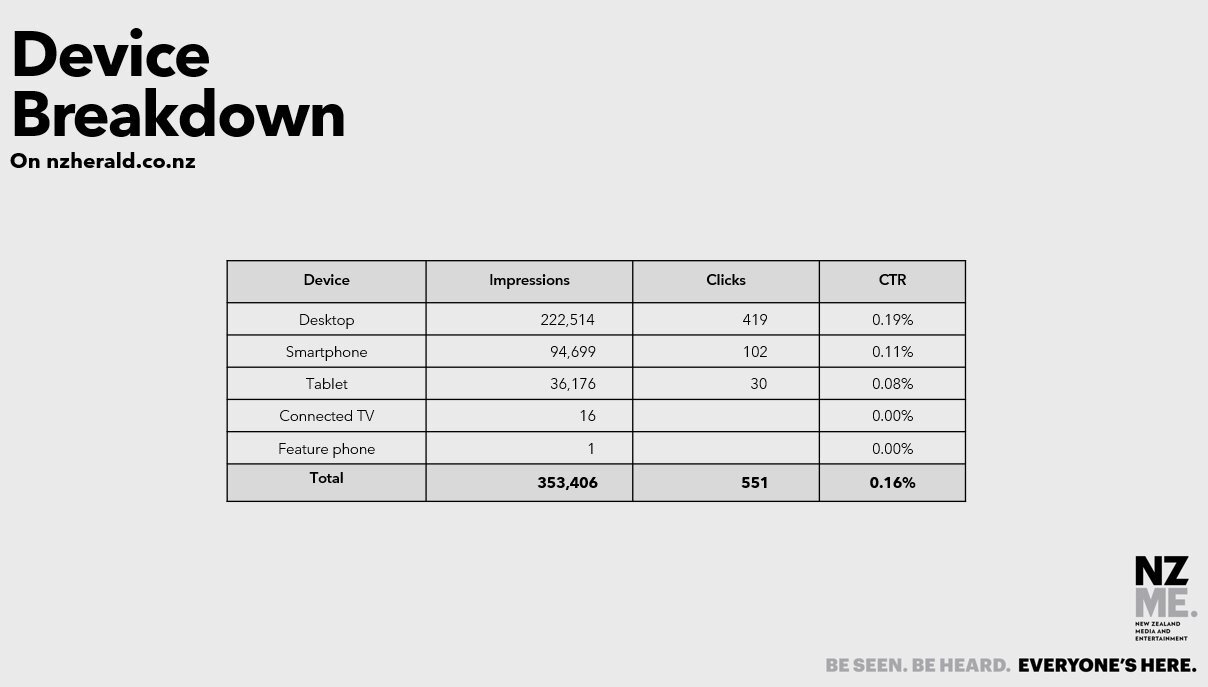
Device Breakdown
Select start and end date – you must select a date no later than today’s date or nothing will show up.
Select Order (IO campaign name)
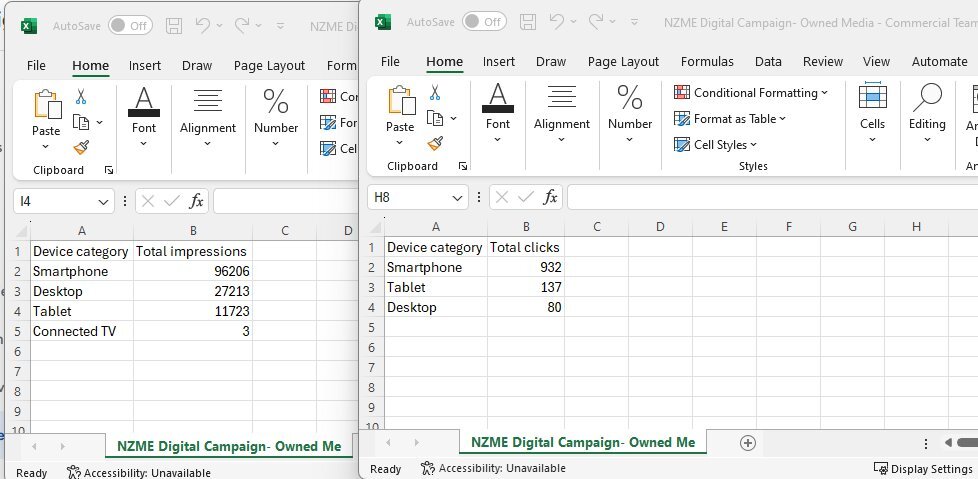
Export to Excel – both impressions and clicks, then combine the two spreadsheets, make sure you match up the correct lines
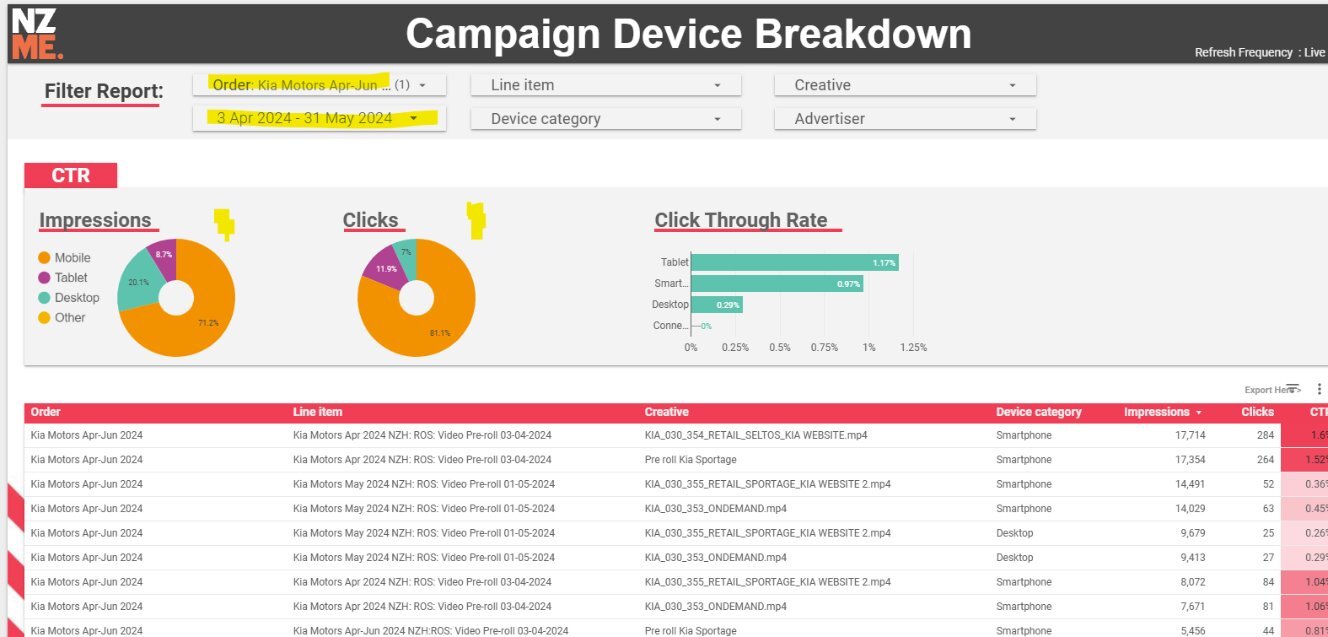
Select start and end date – you must select a date no later than today’s date or nothing will show up.
Select Order (IO campaign name)
Export to Excel – both impressions and clicks, then combine the two spreadsheets, make sure you match up the correct lines
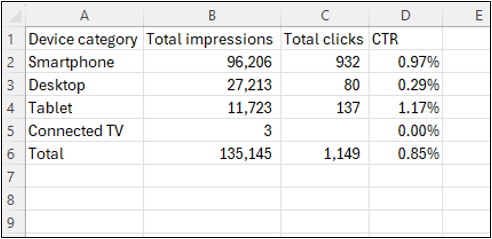
Copy and paste into your report template